

Monitor arm vs monitor stand: an arm wins if you adjust position often, share a desk, or run more than one screen. OSHA recommends keeping the top of the screen at eye level and at least 20 inches away, and an arm gets you there in seconds instead of a stand’s one-time setup. A stand is the simpler, cheaper choice if your height is already right and isn’t going to change.
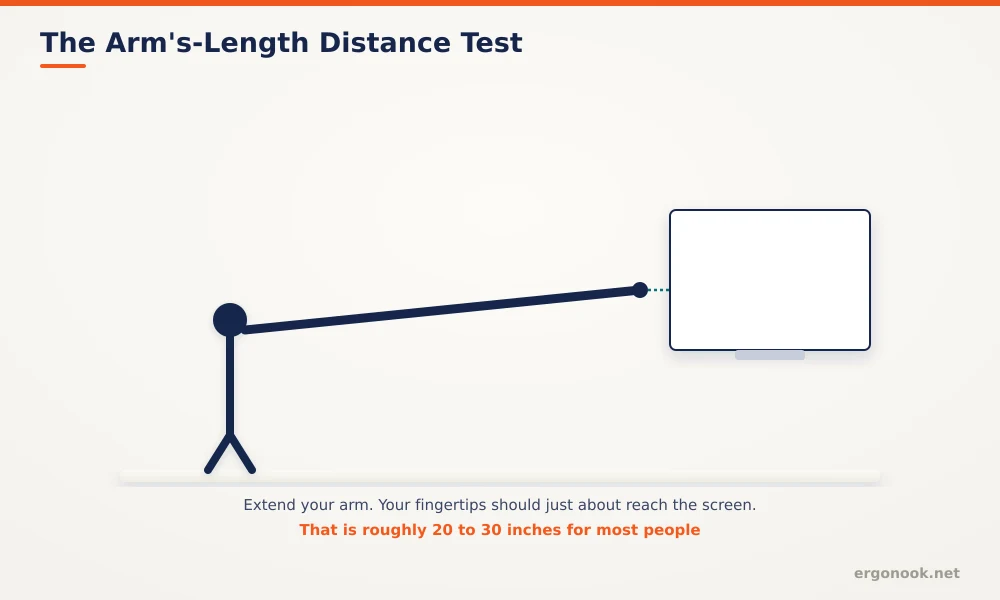
- OSHA’s Computer Workstations eTool recommends a screen distance of at least 20 inches, with the top of the display at or near eye level.
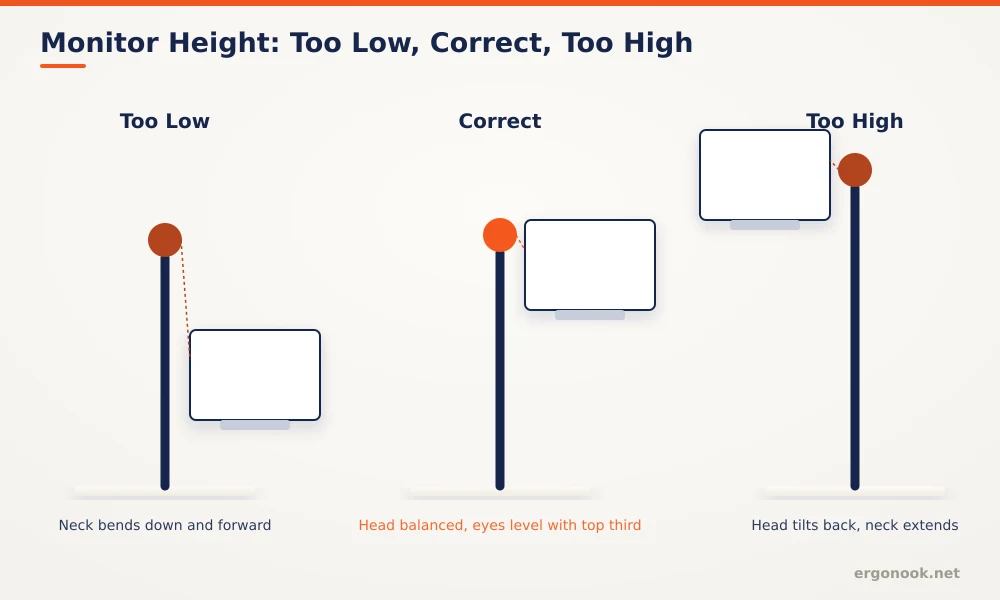
- Cornell University’s ergonomics program recommends your line of sight land 1 to 2 inches below the top of the screen, which most stands can’t fine-tune once set.
- VESA’s mounting standard defines a 100mm square hole pattern as the base spec, with a smaller 75mm pattern for lighter displays, both of which most arms and stands support.
- A stand is typically the lower-cost option; an arm costs more but adds height, depth, tilt, and swivel adjustment that a stand can’t match.
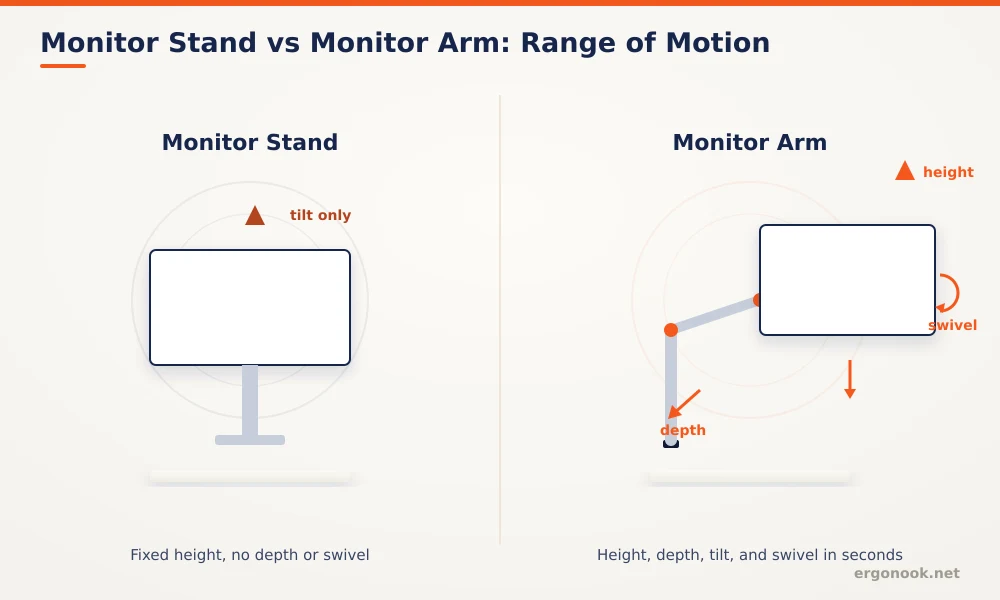
Monitor Arm vs Monitor Stand: Quick Comparison
| Criteria | Monitor Stand | Monitor Arm |
|---|---|---|
| Adjustability | Fixed height on most models, tilt only | Height, depth, tilt, and swivel |
| Desk clearance needed | Just enough depth for the base | Thin edge for a clamp, or a drilled grommet hole |
| Weight handling | Rated for a max static load, nothing to drift | Rated range; heavy ultrawides near the top of it can sag over time |
| Installation | Set it down, done in a couple of minutes | Clamp or grommet mount, VESA plate, tension balancing, 15 to 30 minutes |
| Cost | Generally the cheaper option | Higher, and dual or triple arms cost more again |
| Best for | A single monitor at a height that won’t change | Shared desks, standing desks, multi-monitor setups |
In this article:
- What is a monitor stand?
- What is a monitor arm?
- Monitor arm vs monitor stand: desk clearance and installation
- Monitor arm vs monitor stand: weight capacity
- Monitor arm vs monitor stand: cost
- When a monitor stand is the better choice
- When a monitor arm is the better choice
- Can you use both in the same setup?
- Frequently asked questions
What Is a Monitor Stand?
A monitor stand is a fixed platform that raises your screen to a set height, with maybe a simple tilt and nothing else that moves. Set it on the desk, put the monitor on top, and the height is whatever the stand’s riser gives you. Some stands add storage underneath or a slight rise-and-lower range, but most are a one-time setup, not something you adjust through the day.
What Is a Monitor Arm?
A monitor arm mounts to your desk with a clamp or through a drilled grommet hole, then holds the screen on an articulated joint you can move by hand. Most arms let you adjust height, depth, and tilt on the fly, and swing the screen out of the way entirely when you need the desk space for something else. The monitor attaches through a VESA mounting plate, a standardized screw pattern on the back of most displays, which is what lets one arm fit monitors from different brands.
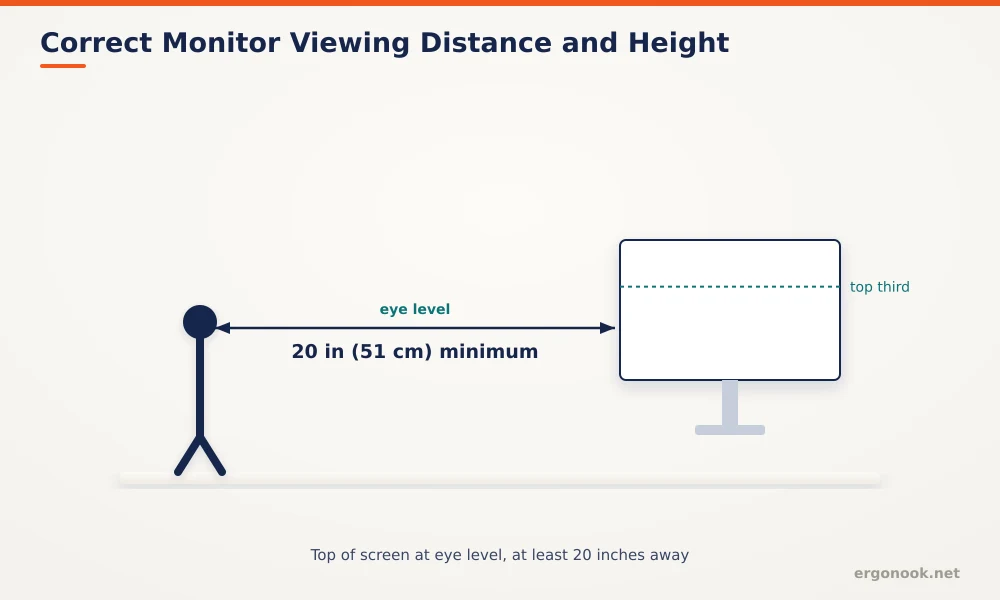
Whichever mount you use, the ergonomic target doesn’t change. Cornell University’s ergonomics program recommends your line of sight land 1 to 2 inches below the top of the screen, and OSHA’s guidance calls for at least 20 inches of viewing distance with the display centered in front of you (OSHA, Cornell University Ergonomics). A stand hits that target once, at setup. An arm lets you re-hit it every time your chair, desk, or seating position changes.
Monitor Arm vs Monitor Stand: Desk Clearance and Installation
Desk clearance is the practical dealbreaker most buyers don’t think about until the arm is already in the box. A clamp mount needs a desk edge thin enough to grip and clear underneath, so a thick edge, an unusual material like stone or glass, or no open space below can rule out a clamp entirely. A grommet mount solves that by drilling a hole through the desk instead, which isn’t an option on every surface either. A stand just needs enough depth on top of the desk to hold its base, a much lower bar that rarely rules anything out.
Installation time follows the same pattern. A stand is close to plug and play: set it down, put the monitor on top, done in a couple of minutes. An arm takes longer, since you’re mounting the clamp or drilling the grommet hole, attaching the VESA plate to the back of the monitor, then balancing the arm’s spring tension to match the screen’s weight so it holds position instead of drifting. It’s not difficult, but budget 15 to 30 minutes rather than 2.
Monitor Arm vs Monitor Stand: Weight Capacity
A stand’s weight rating is simple: it’s a static load, so as long as the monitor is under the rated max, nothing changes over time. An arm is different, since it’s holding that weight against spring tension, not a fixed surface. Going over the rated range, or sitting near the top of it, leads to drift, where the screen slowly sags out of position over hours or days and needs re-tightening. This matters more for large or ultrawide monitors, which weigh noticeably more than a standard 24-inch screen and push cheaper arms past their comfortable range even when they’re technically rated to hold it. The practical rule: look for an arm rated for meaningfully more than your monitor’s actual weight, not just barely enough.
Monitor Arm vs Monitor Stand: Cost
Stands are generally the cheaper option, and price scales with material and build quality rather than mechanical complexity. Arms cost more because you’re paying for the gas spring or tension mechanism, the swivel joints, and the mounting hardware, and a dual or triple monitor arm costs more again since it needs a sturdier base to handle the combined weight and leverage of multiple screens.
When a Monitor Stand Is the Better Choice
If you sit in the same spot with the same posture every day and your monitor height is already dialed in, a stand at the correct height does the job for less money and with nothing mechanical to break or loosen over time. It’s also the safer pick on a desk with a thick edge, glass top, or no clearance underneath for a clamp, since a stand only needs surface space, not access to the edge.
When a Monitor Arm Is the Better Choice
An arm earns its higher price when your setup needs to change. If you switch between sitting and standing, especially with a standing desk where the monitor needs to move with the desk height, share a desk with someone who needs a different eye level, or need to angle the screen to deal with glare from a window, an arm adjusts with you instead of forcing you to adjust to it every time. Because repositioning takes seconds, you’re also more likely to actually fix a bad angle when you notice it, rather than living with a slightly wrong height because adjusting a stand means physically lifting and re-stacking risers.
If you’re running a large or ultrawide display, our monitor arms for ultrawide monitors roundup covers weight capacity and reach range, the two specs that matter most for keeping a heavy screen stable over the long run rather than sagging within a few months.
Can You Use Both in the Same Setup?
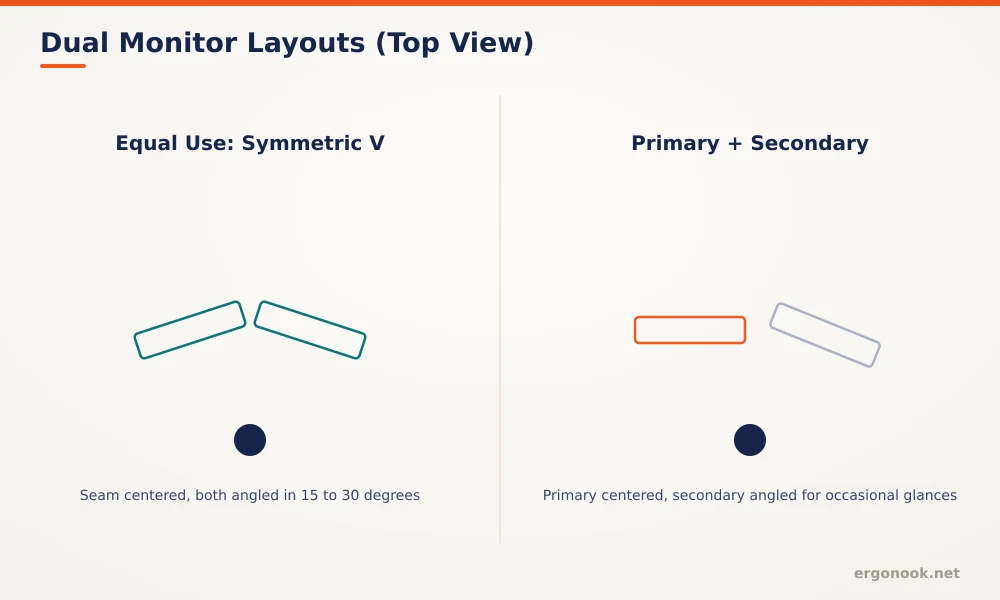
Yes, and it’s a common setup for two-monitor desks: one primary screen on an arm for the flexibility, one secondary screen on a stand or the desk itself for reference material you check less often. For dual-monitor setups generally, positioning matters more, not less. If you split time evenly between two screens, centering the seam between them in front of you avoids constantly turning your neck toward one side. If one monitor is primary and the other is occasional, angling the secondary screen slightly inward reduces how far you twist to glance at it. Our dual monitor arms for small desks roundup covers arms built for exactly this kind of mixed setup.
There’s a visual difference too. A stand sits as a static block on the desk, clean if it matches your other furniture, bulky if it doesn’t. An arm clears the desk surface underneath the screen entirely, which reads as more minimal, especially with a dual or triple monitor arm holding two screens on a single pole instead of two stands taking up desk width. If you’re optimizing for usable desk surface as much as ergonomics, that reclaimed space is a real, if secondary, benefit of an arm.
Frequently Asked Questions
Can I use a monitor arm on any desk?
Not always. Thick edges, glass tops, or desks without room underneath for a clamp can rule out clamp-style arms, and a grommet mount requires drilling a hole, which isn’t an option on every desk.
Do monitor arms work with laptops?
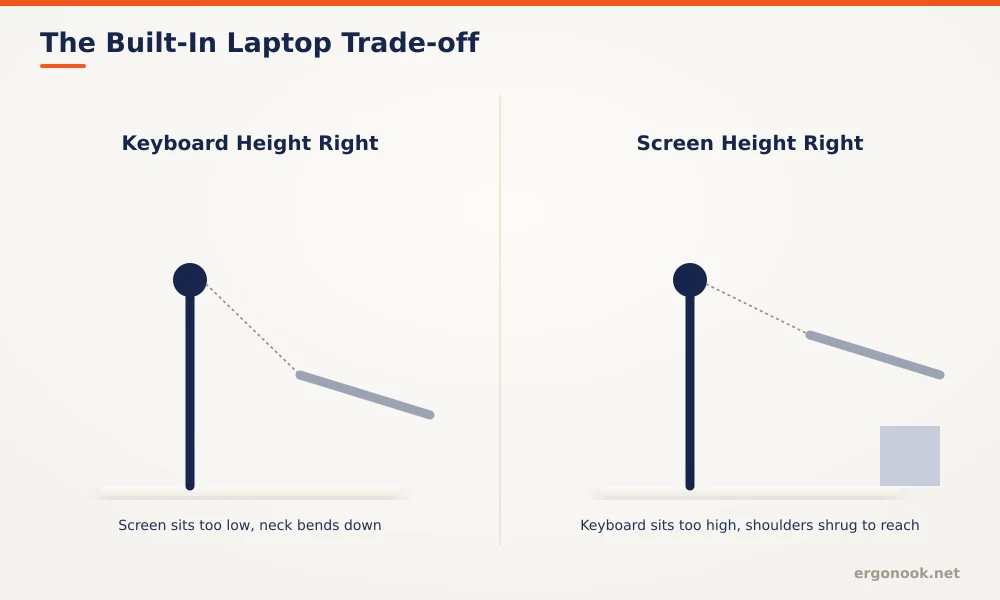
Some arms include a laptop tray attachment, but a standard arm is built for a VESA-mount monitor, not a laptop lid.
Is a monitor stand enough for ergonomics?
If it puts your eyes level with the top third of the screen and you don’t need to change position often, yes. Height is the main factor either option has to get right.
Do I need a monitor arm for a dual monitor setup?
Not strictly, but an arm makes it easier to angle two screens toward you evenly and reclaim desk space that two separate stands would take up.
Material and mount aside, the actual ergonomic benefit comes from getting the height and distance right, not from the mechanism holding the screen there. A stand can do that job permanently for a setup that never changes. An arm earns its cost the moment your setup needs to move.


Write Your Review
No reviews yet. Be the first to share your experience!