

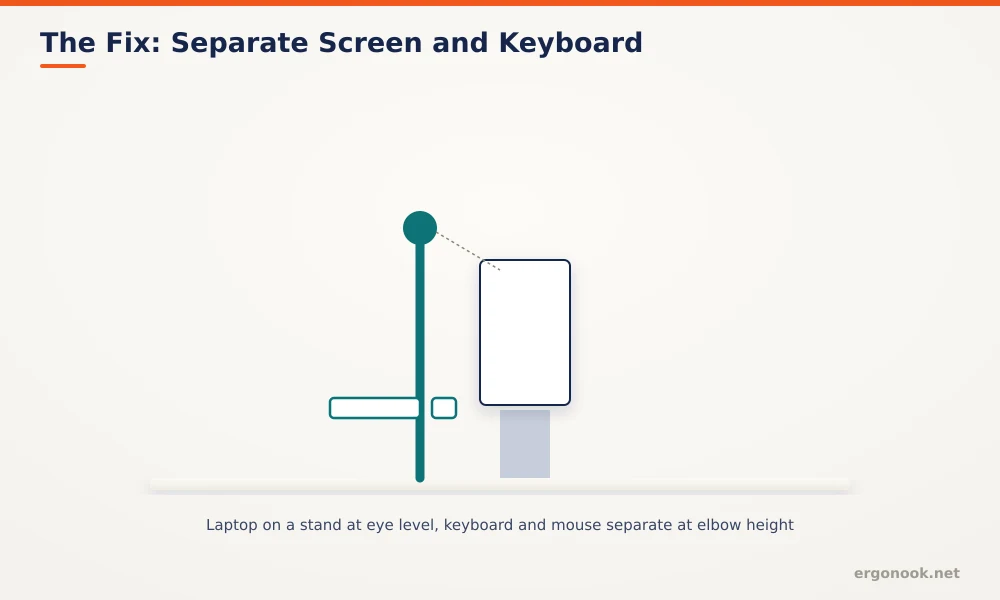
To set up a laptop for ergonomics, raise the screen to eye level with a stand and use a separate external keyboard and mouse. Cornell’s ergonomics program recommends this for anyone using a laptop more than one hour at a time, since a laptop’s built-in screen and keyboard can’t both be at the correct height at once.
- Cornell’s CUErgo lab recommends an external keyboard, and often an external monitor, for anyone using a laptop for more than one hour at a time.
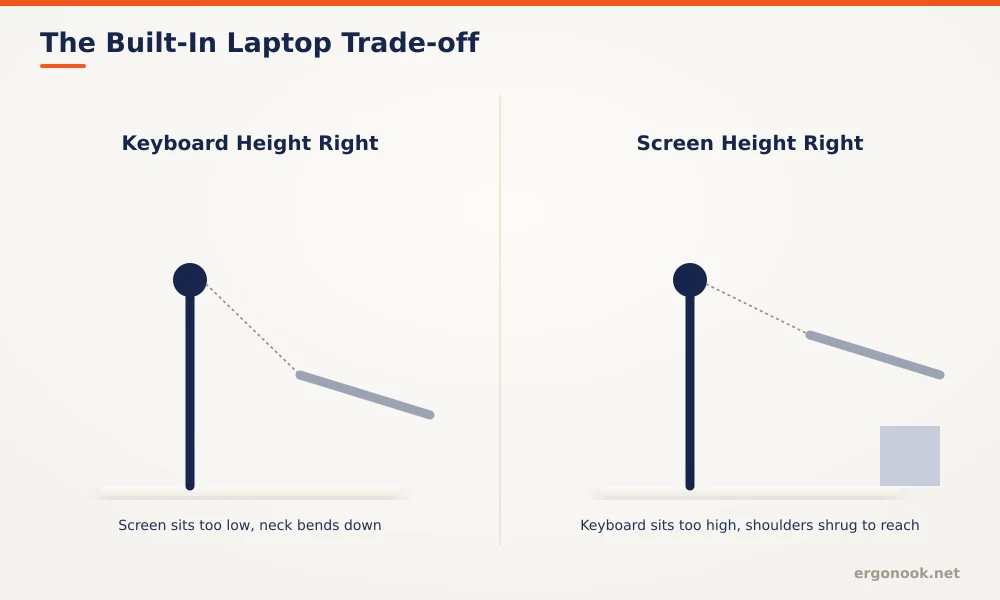
- A laptop’s screen and keyboard are fixed relative to each other, so a height that’s correct for one is almost always wrong for the other.
- Raising the screen without an external keyboard just trades a neck problem for a shoulder problem, since you’d be reaching up to type.
- A negative-tilt keyboard tray or a keyboard placed directly on the desk both work, as long as the laptop itself is elevated separately.
In this article:
- Why laptops are hard to set up ergonomically
- How to set up a laptop correctly
- Choosing a stand and external devices
- Special cases
- Signs your laptop setup needs fixing
- Frequently asked questions
Why Laptops Are Hard to Set Up Ergonomically
A desktop setup separates the screen from the keyboard, so you can position each one independently. A laptop welds them together at a fixed distance and angle, which means a height that puts the screen at eye level puts the keyboard well above elbow height, and a height that puts the keyboard at elbow height leaves the screen low enough to force your neck into a forward bend for however long you’re working. Cornell’s ergonomics program addresses this directly: if you use a laptop for more than an hour at a stretch, get an external keyboard and, ideally, an external monitor too (Cornell University Ergonomics, 5 Tips for Laptop Use).
How to Set Up a Laptop Correctly
1. Raise the Screen to Eye Level
Use a laptop stand or riser to bring the top of the screen close to eye level, the same target as a desktop monitor. This is the step most people skip, since it feels unnecessary for a device that’s meant to be portable, but it’s the single change that fixes the forward neck bend a laptop otherwise forces on you.
2. Add an External Keyboard and Mouse
Once the laptop itself is elevated, its built-in keyboard is too high to type on comfortably. An external keyboard placed at elbow height on the desk, or on a negative-tilt tray, replaces it. A separate mouse does the same job for the trackpad, which becomes awkward to reach once the laptop is raised.
3. Keep Viewing Distance in the Same Range as a Desktop Monitor
The same 20-inch minimum distance that applies to a desktop monitor applies to a raised laptop screen. Since laptop screens tend to be smaller than external monitors, there’s a temptation to sit closer, which reintroduces the near-focus strain a proper distance is meant to avoid.
Choosing a Stand and External Devices
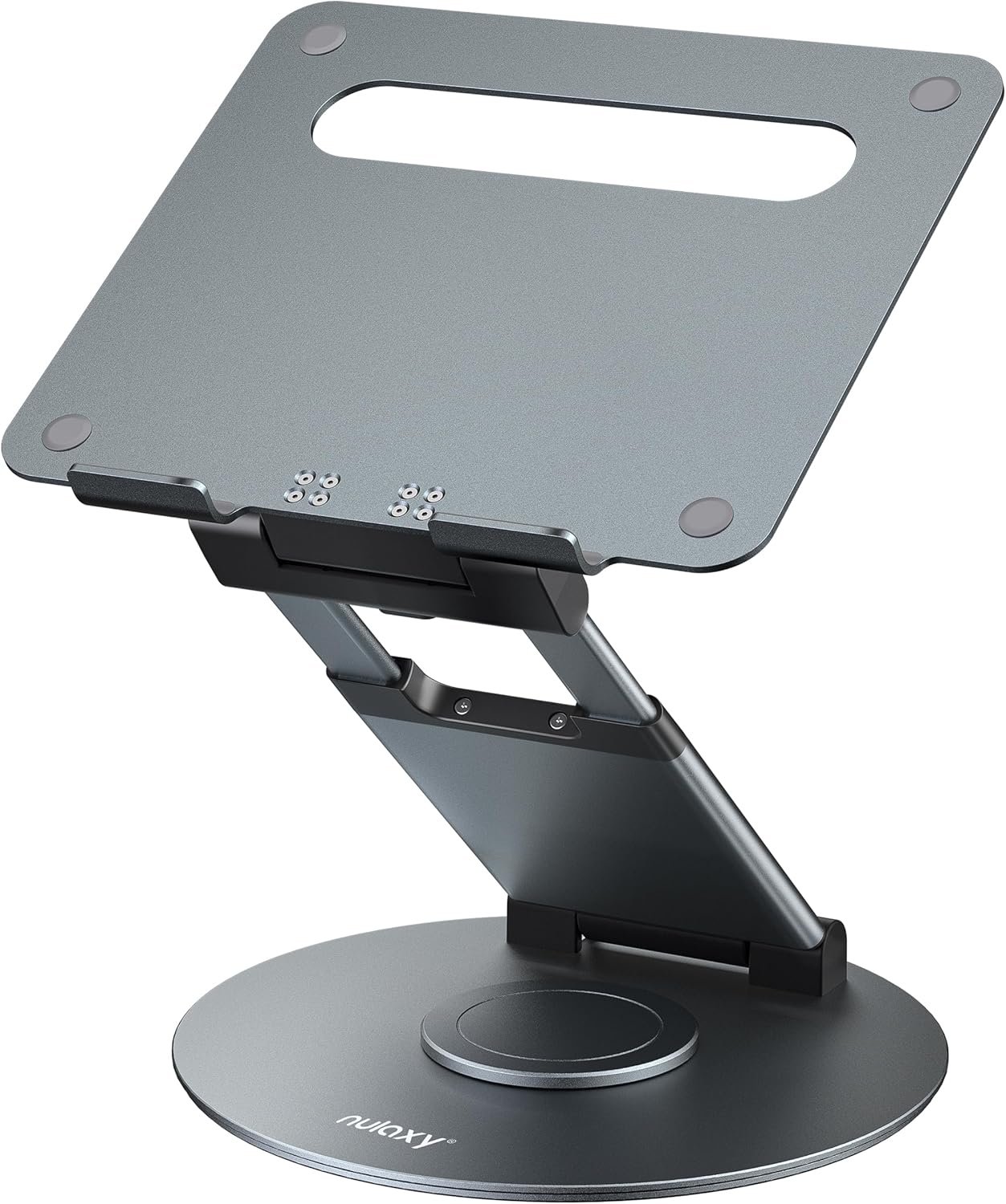
A basic fixed-angle stand is enough if you only ever use the laptop at one desk. An adjustable-height stand or arm is worth the extra cost if you move between locations or share the desk, since you can reset the height each time rather than owning multiple risers. Our laptop stand for standing desk roundup covers models built to handle both a fixed desk and a sit-stand routine without needing a second stand for each.
Special Cases
Working from bed or a couch occasionally is fine, but it’s worth treating as the exception, not the default, since soft surfaces make a stable, correctly angled setup nearly impossible. If you travel frequently, a lightweight folding stand that fits in a bag matters more than one with a wide height range, since you’ll actually bring it along instead of leaving it at home. Dual laptop and external monitor setups should treat the external monitor as primary and the laptop screen as secondary, following the same layout principles as a two-monitor desktop setup.
Signs Your Laptop Setup Needs Fixing
Neck and upper back tension that shows up specifically during laptop sessions, and eases on days you use a desktop setup instead, is a strong signal the screen height is the problem. Wrist or shoulder strain after switching to a raised laptop and external keyboard usually means the keyboard height itself still needs adjusting, not that the whole setup was a mistake. If you catch yourself hunching toward the screen despite having it elevated, check viewing distance next, since a small screen can tempt you closer than the recommended range.
Frequently Asked Questions
Do I need a laptop stand for short sessions?
Cornell’s guidance focuses on sessions over an hour. For quick tasks, the ergonomic cost is smaller, though the habit of always propping it up removes the guesswork.
Can I use a laptop stand without an external keyboard?
Not effectively. Raising the screen without a separate keyboard just moves the built-in keyboard out of comfortable typing range, trading one problem for another.
Does a docking station help with ergonomics?
Indirectly, since it makes connecting an external monitor, keyboard, and mouse a single-cable action, which removes the friction that causes people to skip proper setup.
Do the same rules apply to a tablet with a keyboard case?
Yes, the same screen-and-keyboard trade-off applies, and a stand plus external keyboard fixes it the same way.
Setting up a laptop for ergonomics means treating the screen and keyboard as two separate adjustments instead of one fixed unit. Raise the screen, add an external keyboard and mouse, and the rest of the guidance matches a standard desktop setup.


Write Your Review
No reviews yet. Be the first to share your experience!